How to Invite Team Members to Promptmonitor
This guide will walk you through inviting team members to collaborate on your Promptmonitor projects.
Prerequisites
- You must have an admin role on your team
- You need the email address of the person you want to invite
- Note: All plans have unlimited seats except the Starter plan
Step-by-Step Guide
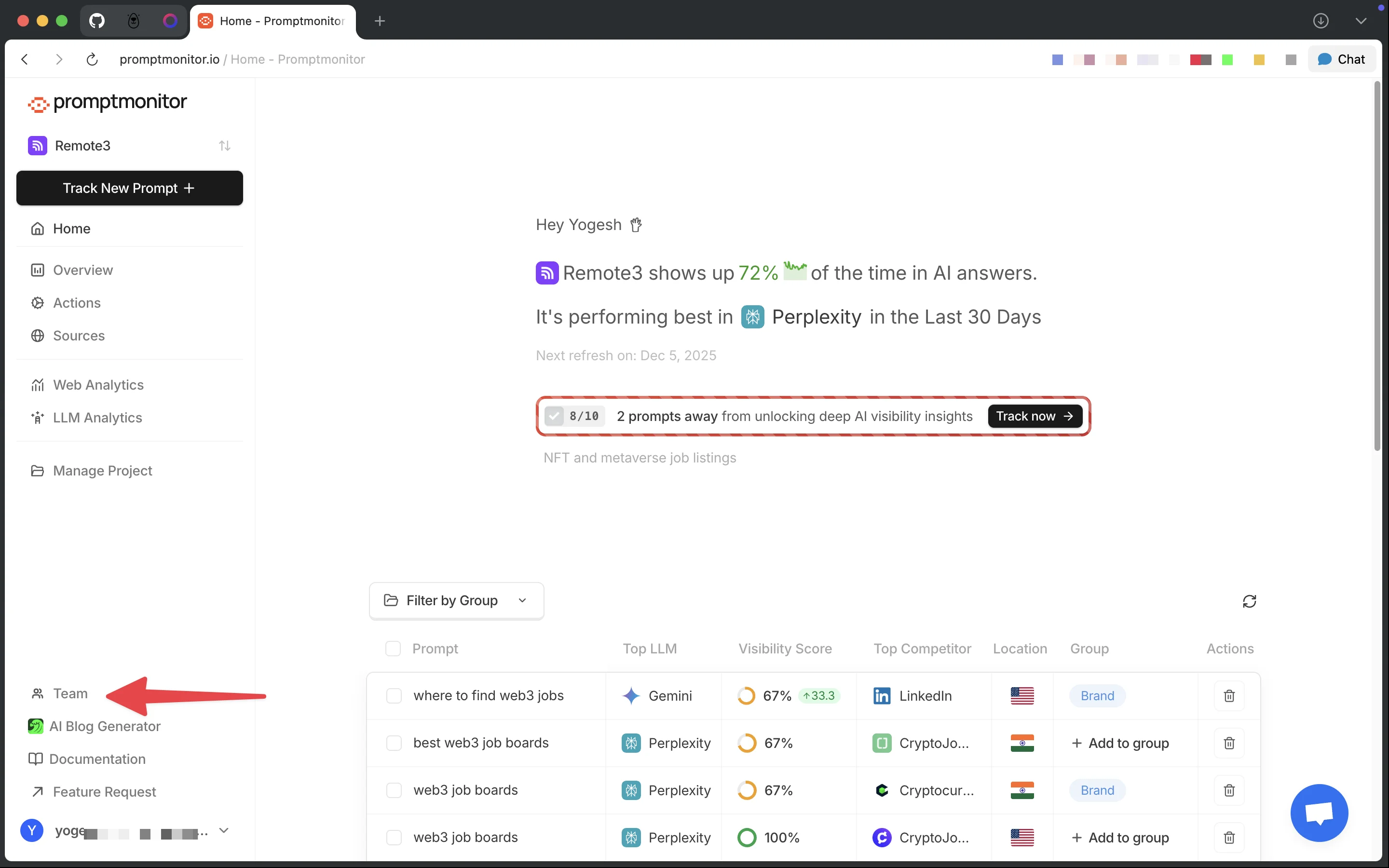
1. Navigate to Team from Your Project
From any project page, click on "Team" in the sidebar navigation.
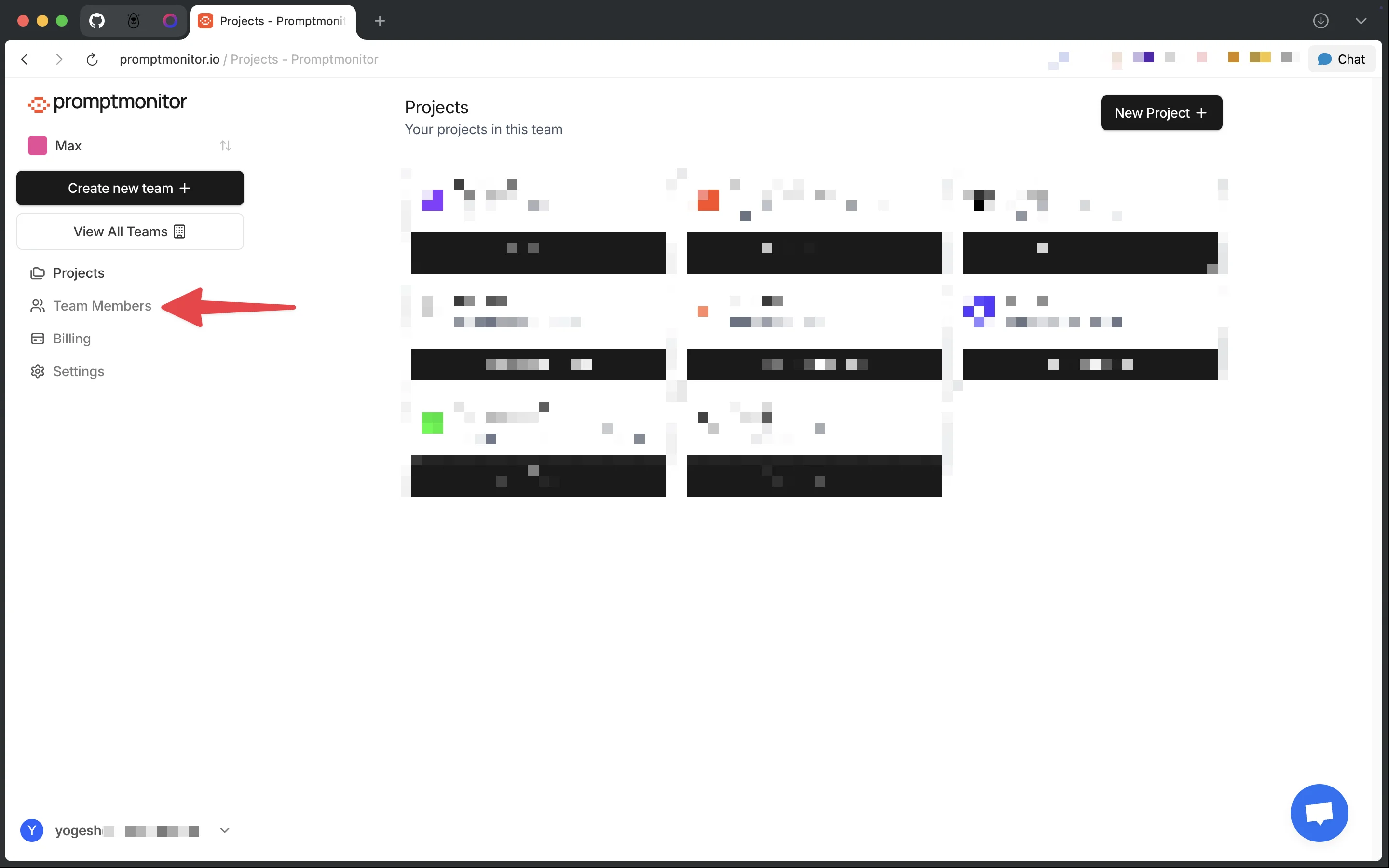
2. Click on Team Members
In the Team section sidebar, click on "Team Members".
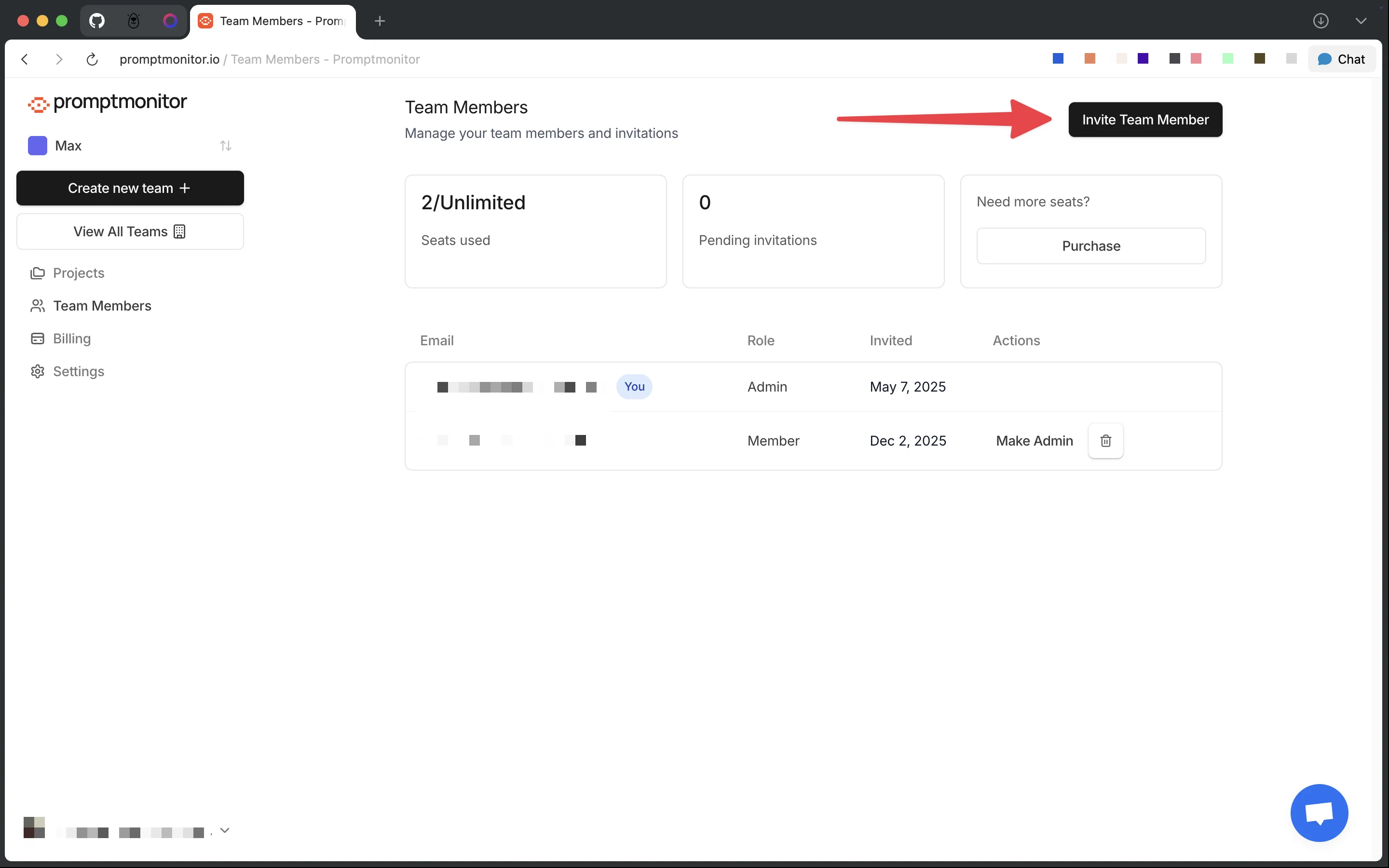
3. Click Invite Team Member Button
Click the "Invite Team Member" button in the top right corner.
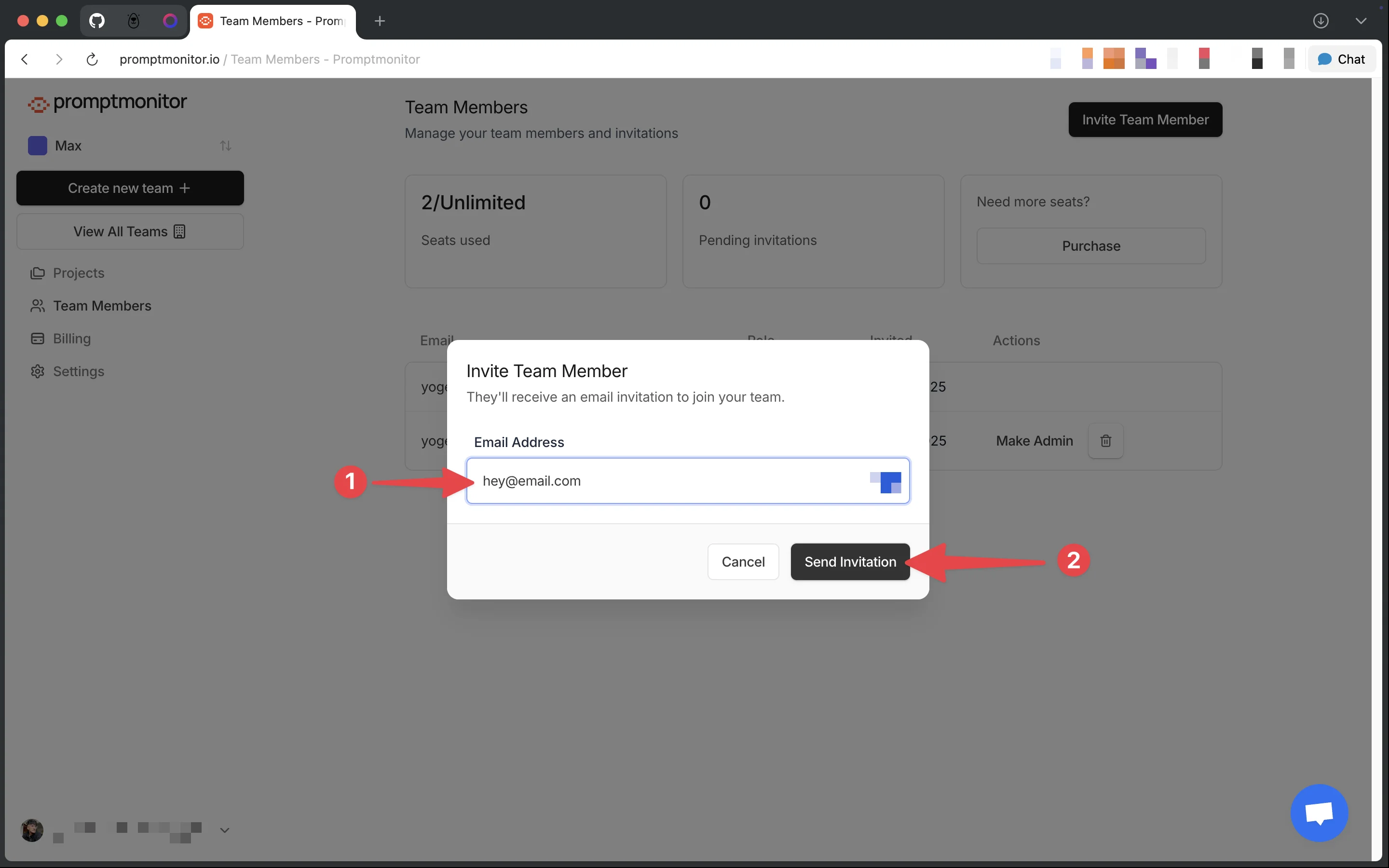
4. Enter Email and Send Invitation
A modal will appear:
- Enter the email address of the person you want to invite
- Click "Send Invitation"
- You'll see a success message confirming the invitation was sent
5. What Happens Next
The invited person will:
- Receive an email invitation from Promptmonitor
- Have 7 days to accept the invitation before it expires
Understanding Roles
Admin
- Can invite new team members
- Can remove team members
- Can change member roles
- Can view all team information
- Has full access to all projects on the team
Member
- Can view team information
- Can view team members
- Has full access to all projects on the team
- Cannot invite, remove, or change roles
Seat Limits by Plan
- Starter Plan: Limited seats (check your plan details)
- All Other Plans: Unlimited seats - invite as many team members as you need!